Working with equations in Microsoft Word
The equation tool in Microsoft Word can be used to create complex equations. This article would show you how to get started.
Using built-in equations:
Click on Insert and then the arrow underneath the Equation icon. You should see the following:

These are built-in equations. To use them, click on the equation of your choice. The formula will appear on the Word document and you would be able to edit the formula as needed.
Show the equation ribbon:
To show the equation ribbon, click on the PI symbol just about the equation icon you used in the previous section.

You should see the an equation field on the document and an equation ribbon.

Sample Equation:
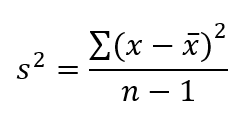
In the remainder of the article, you will learn how to create the following formula. I chose this formula because it covers many of the important operations in the formula building.
Using Superscript in your formula
Start by type “s” in the equation field. Then select the arrow underneath Script icon and than choose the Superscript icon as in the screenshot below:

You should see a dotted rectangular box to the top right of the “s”. Click on the box and type “2”. Then click on the space to the right on the 2 and type “=”. Note that Word with add spacing automatically so you don’t need to add any spaces in your formula. You should see the following;


Using Fraction in your formula:
Click on the arrow underneath Fraction icon and then choose the Stacked Fraction icon as shown below:

You should see the following:

Using Sum in your formula
To use sum, product, co-product, union, or intersection symbols, you need to use Large Operator icon. Click on the arrow underneath this icon and choose Summation icon as follows:

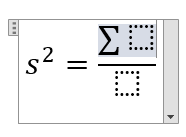
You should see the following:
Using accent in your formula
Type “(x – x)”. Select the second “x” you just typed and then click on the arrow underneath Accent icon and choose bar as shown below:

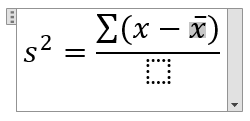
You should see the following:
Then select the entire numerator, from sum symbol to the closing parenthesis and click on Script > Superscript and then type “2”. Then type “n – 1” in the denominator. You should see the following:

You should now be able to create formulas of all types. The key is to plan ahead and find the correct icons.