How to add and remove Excel Add-Ins
Add-Ins are used to add functionality Excel such as pulling stock prices from a website, getting live weather, or connect with Jira. In short, Add-Ins are to Excel what apps are to an iPhone.
To add an Excel Add-In, click on Insert > Get Add-Ins. The choose the Add-In you wish to add. To remove an Add-In, click on Insert > My Add-Ins. The right-click > Remove to remove it.
Following are detailed step by step instructions.
Click on Insert in the top Menu. In the Insert ribbon, Click on Get Add-Ins. If this icon is grey and unclickable, click on any cell in the document and you should be able to click on the icon.

You should see a window that looks like the following. You can find the Add-In you require by using search or browse your options by Category. For this post, I clicked on Maps & Feeds category and the clicked on Add button for the Weather by Visual Crossing.

Click on Continue to add it to Excel.
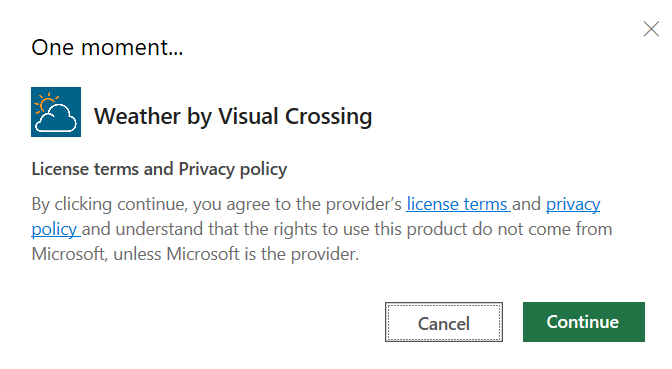
You should see a Weather in the top menu.

To uninstall, click on My Add-ins, right-click and Remove.
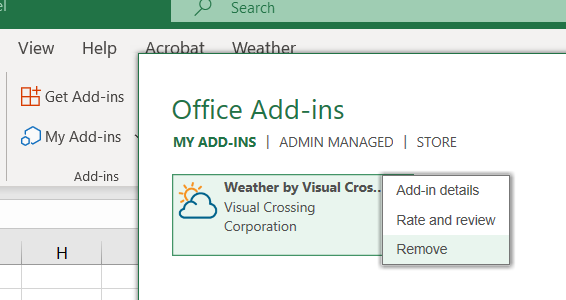
Then click on Remove.
