Cleaning text with trim() and proper()
We often import data, including text, from different sources into Excel. Sometimes this text requires some cleaning such as removing spaces and adding consistency to the text. This post demonstrates how to use trim() and proper() functions to clean text in Excel.
I have the following text that needs cleaning. It is a list of Canadian prime ministers. Note the spaces, use of capital or lower case letters in wrong places.

Following image show what happens when proper() function is applied e.g. =proper(A2:A24)

Note that “Sir john ABBOTT” is reformatted as “Sir John Abbott” and “KIM campbell” is reformatted as “Kim Campbell”. Next, we apply trim() function e.g. =trim(A2:A24)

Note that trim() removed all the extra spaces. However, it does not reformat KIM to Kim or john to John. We can use both functions together to get both affects as follows: =proper(trim(A2:A24)
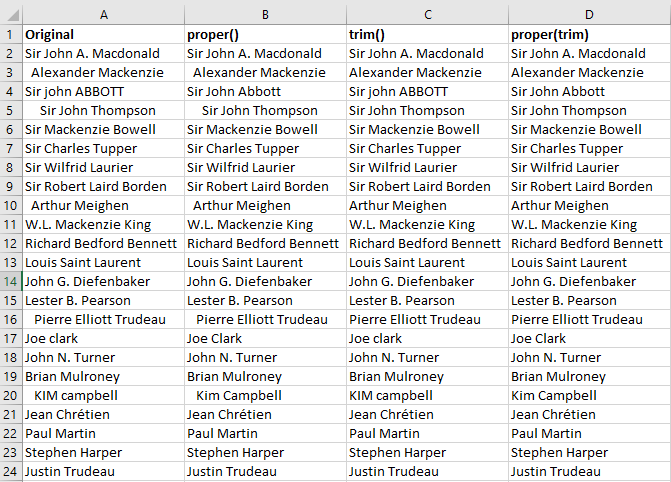
This does not seem very useful for this small list. However, imagine, you have a list of a 100,000 rows. Cleaning data is tedious work. I hope this helped you in your work.